Time Tracking for Small Teams Without a Timesheet

Time tracking for small teams usually arrives as a second application, with its own projects and tasks that match nothing on your board. Somebody keeps the two lists in step by hand, and the hours get reconciled from memory at month end. A number produced that way is a guess with a decimal point.
What time tracking is for in a small team
Track hours for a decision you are going to make. A solo founder billing a client owes a number that holds up a month later. Co-founders splitting effort read the same rows instead of trading impressions. And a vanished month gets a name: the small feature ate 11 days, so price the next one differently.
A fourth use spoils the other three: checking whether somebody worked hard enough. Once a total becomes a score, everybody times to look good and the data turns into fiction. Track what the work cost, not the people. A tracker that does not know your work will lie to you.
Run a timer on the Task you are doing
Anything that wants the work named before it will start is one you abandon by Wednesday. The item the work already sits on needs no naming, and it is already a row in the report.
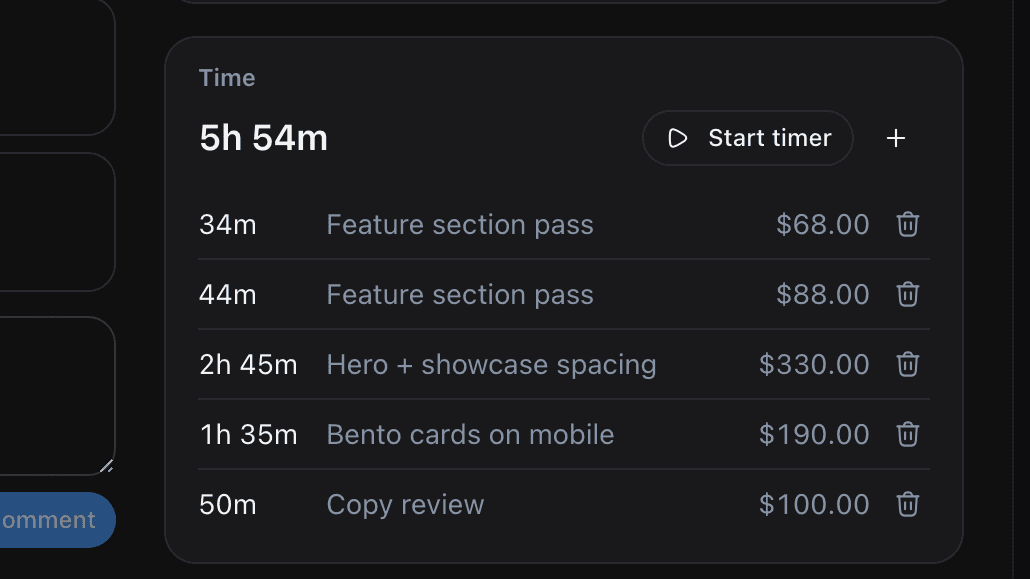
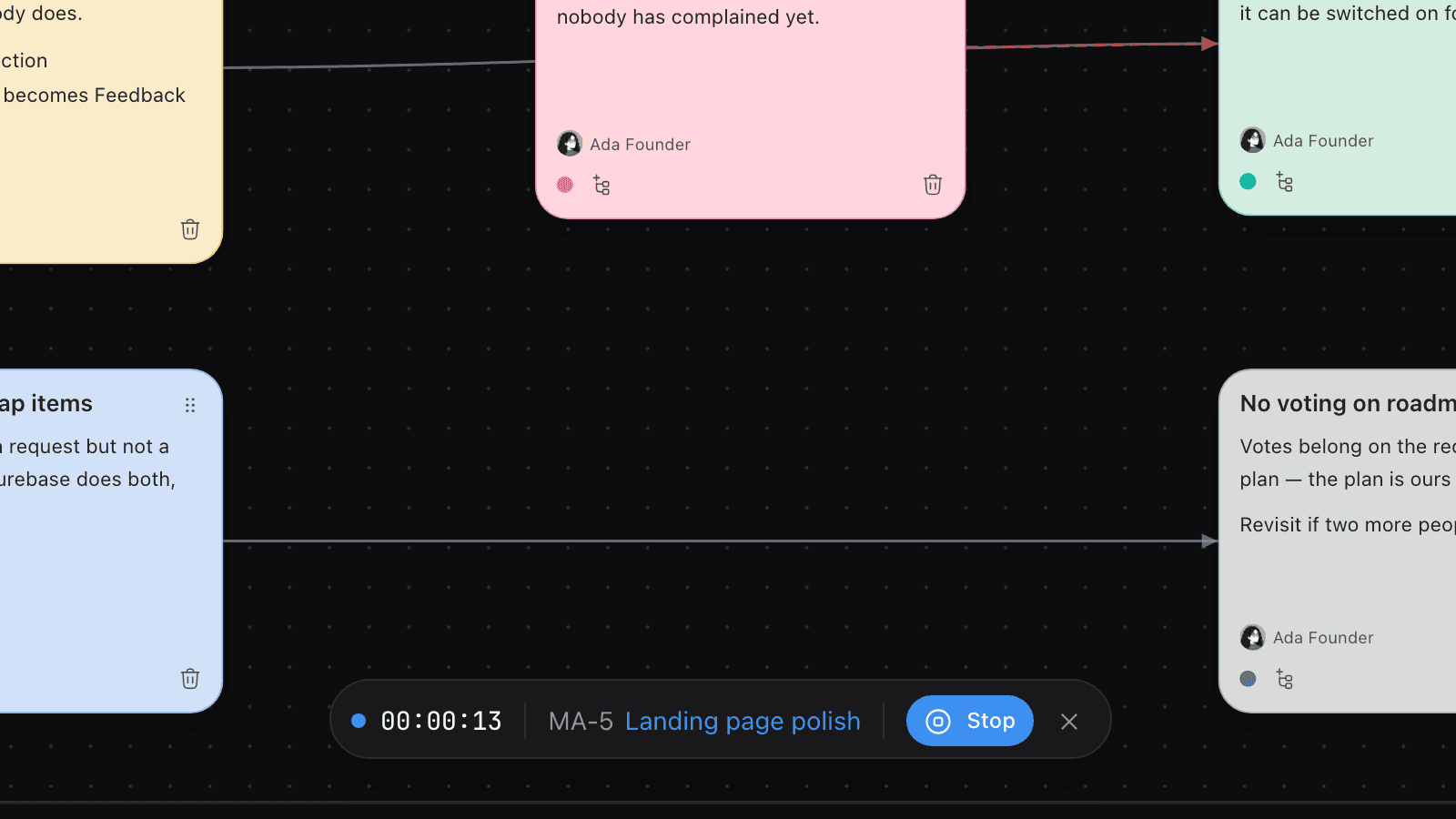
In Feedock the timer starts from the Time card in the Task rail, and that button becomes Stop. That is the only place a timer starts, and one runs per person at a time, across every Project. Stopping settles the entry with a duration the server computes from the stored start, and a stop inside the first minute is refused with nothing recorded.
The failure mode of every timer is the next ten minutes, when you open something else and forget it. This one follows you. Away from the timed Task it shrinks to a clock and drags into any of six docks.
Log time you already spent
Type in the hours nobody timed. A tracker you have to remember to start has a hole in it, and the hole is the same shape every week: the call that ran long, the incident that ate an afternoon.
The duration field takes 2h 30m, 2.5h, 150m, 2:30 or a bare number read as minutes, and the day you pick is the day it lands on.
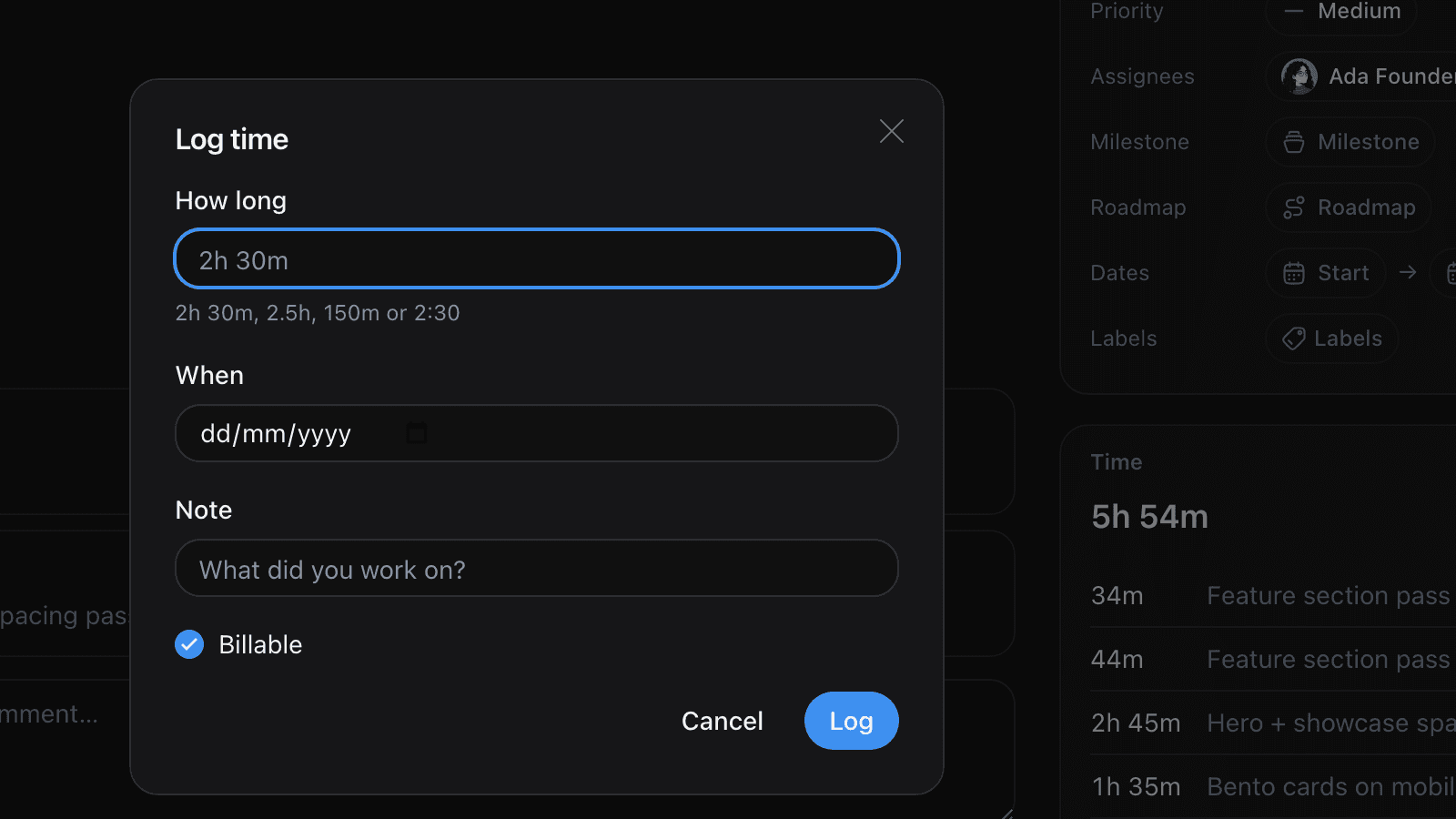
There is no edit. To fix a wrong duration you delete the entry and log it again.
Timer or typed entry, and when to use each
Reach for the timer when work is starting now, and the dialog when it already happened.
| Where they differ | Running timer | Typed entry |
|---|---|---|
| When to reach for it | Work starting now | Work already done |
| Duration comes from | The server, from the stored start | You, as 2h 30m, 2.5h or 2:30 |
| Day it lands on | The day it started | The day you pick |
| If you forget | A nudge finds it, and a day is the cap | Nothing catches it, and the hours are gone |
How hourly rates work
Give each person a rate, and override it only where one piece of work bills differently. Rates resolve most specific first: a rate on the Task wins, then its Milestone, then its Roadmap item, then the person's own rate.
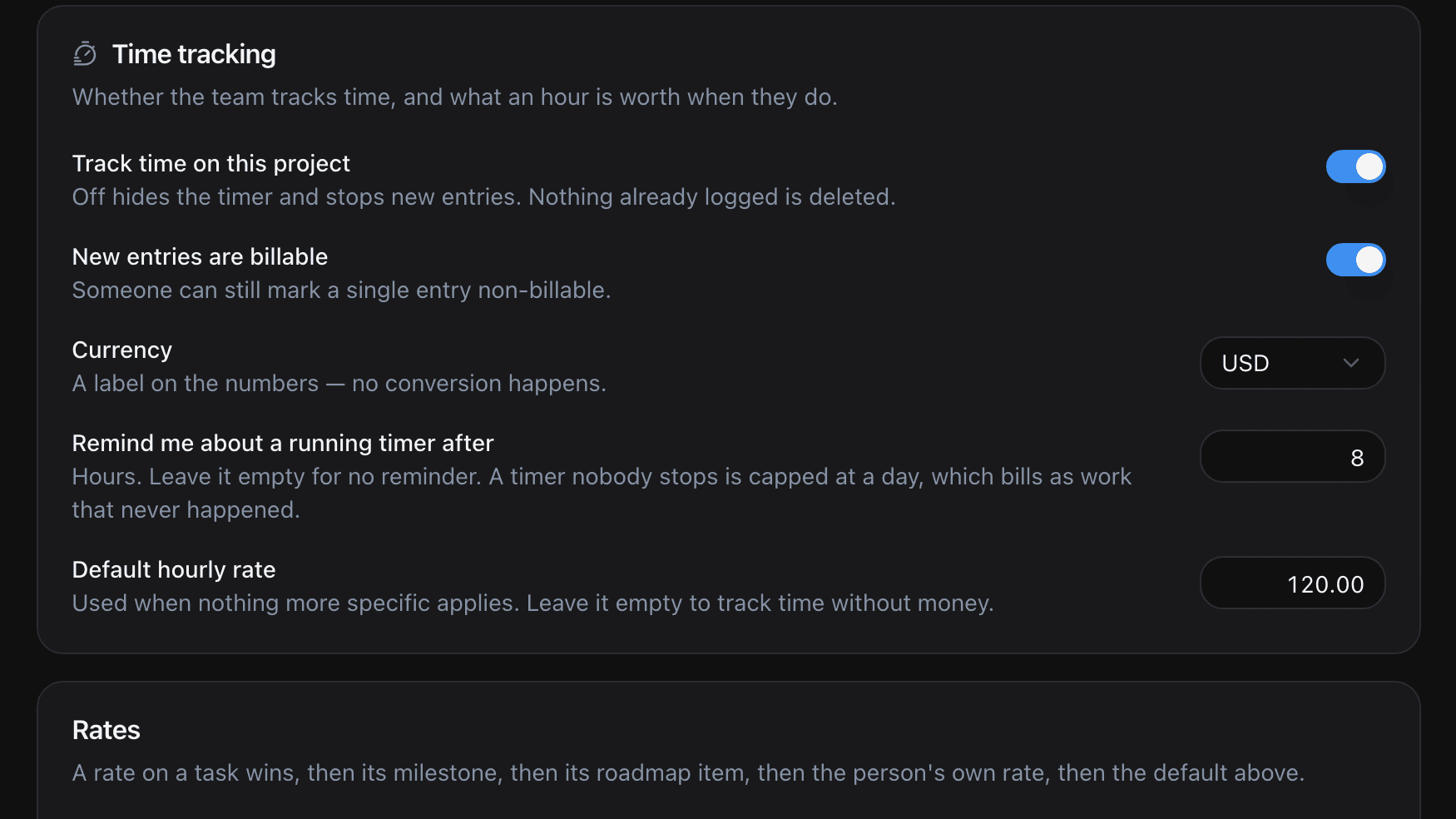
Where a rate can be set
The one you set for everybody is the per-person rate, in Settings under Time and rates. It is required and starts at zero, so an hour always prices rather than falling through to a project-wide number that could disagree with it. Every rate change lands in the audit log.
Why a saved entry keeps its old rate
The rate, the currency and the amount are copied onto the entry when it settles. Give somebody a raise today and last quarter keeps what it was worth then.
How to read a time report
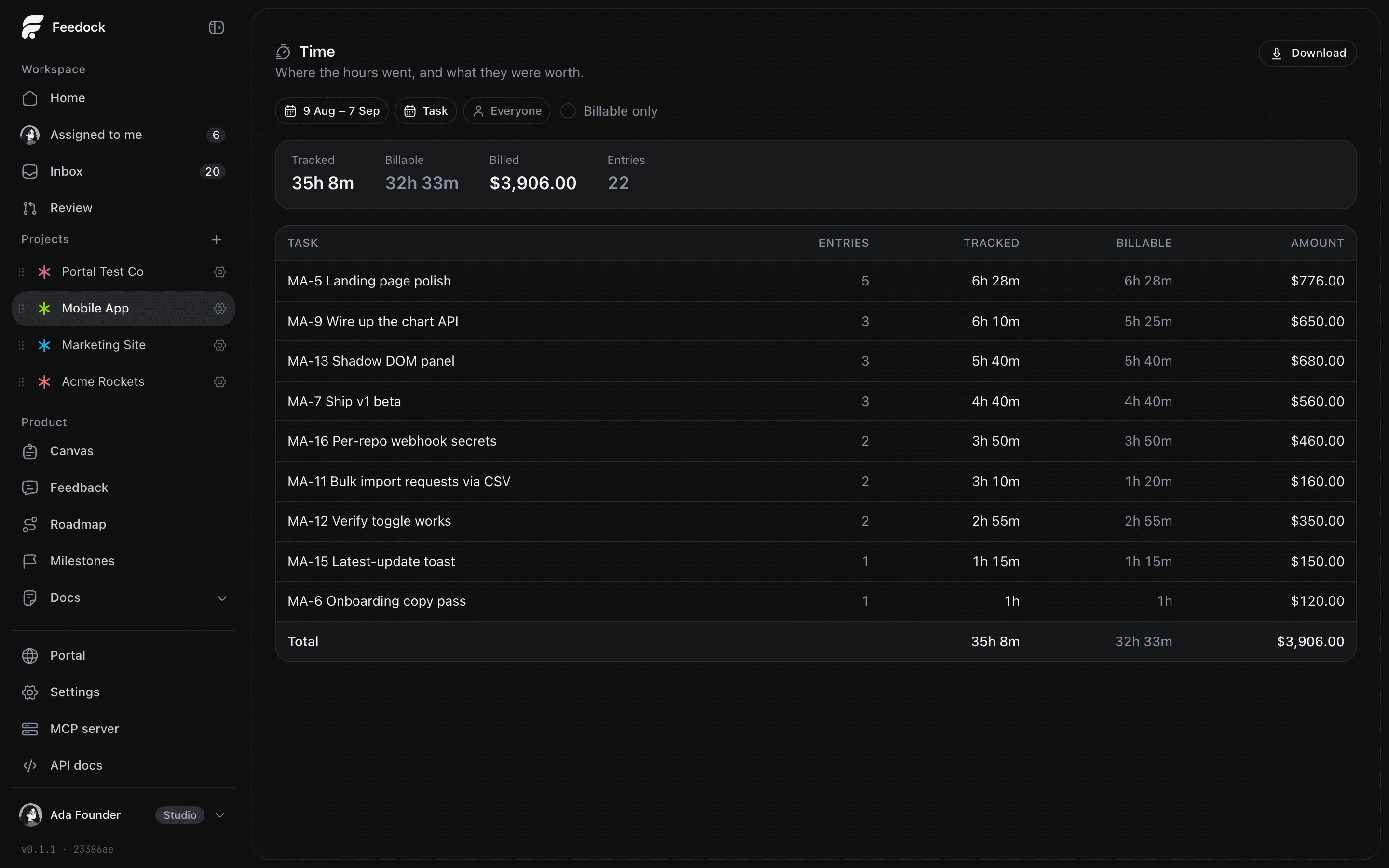
Pick the window first and the grouping second, because the grouping is the question: who, what, or when. A report rolls up entries over the window you choose and groups them by person, Task or day, and it opens on the last 30 days grouped by person.
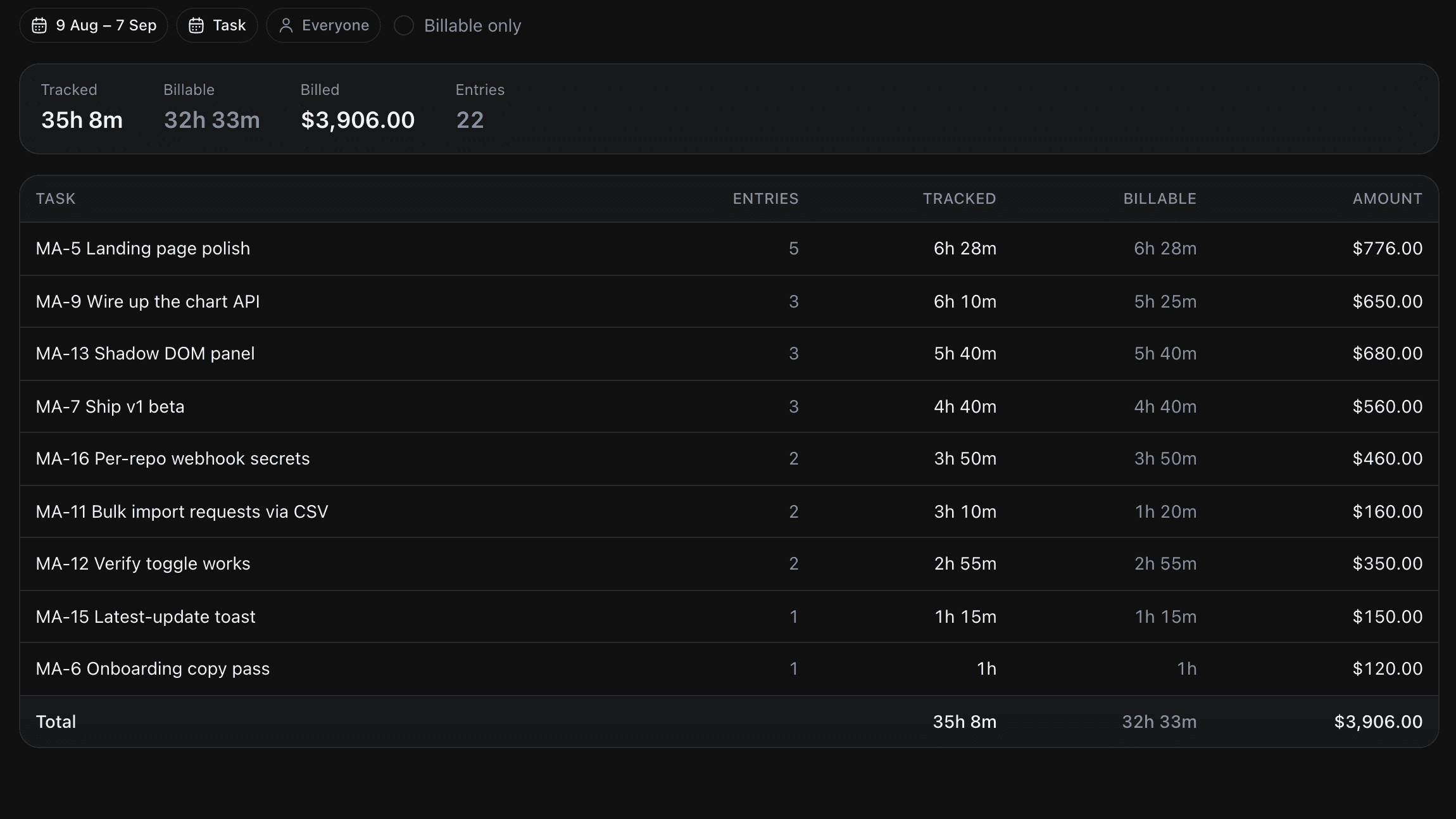
Four figures sit above the table: Tracked, Billable, Billed and Entries. Time with no Task lands in an Unassigned row, so the rows always add up. Individual entries are not listed here; they live on the Task, which shows its most recent 200.
Hours by person
Group by person when the question is the split. It makes a poor performance review, and reading it as one is how a team loses the data.
Hours by Task
Group by Task for what a piece of work cost, and by day for where a week went. The rows are the Tasks themselves, so a row names real work instead of a project label somebody retyped. The hours stay inside the Project. A public roadmap publishes progress, never what the work cost.
Billable hours versus total hours
Read Tracked and Billable as two questions. Tracked is where the month went. Billable is the part somebody is paying for, and the gap is support, rework and the afternoon that went to a broken build.
How to export hours to CSV or PDF
Take the CSV unless somebody wants a page to look at. Neither file lists the entries themselves. There are no per-entry lines, no notes, no dates and no rates.
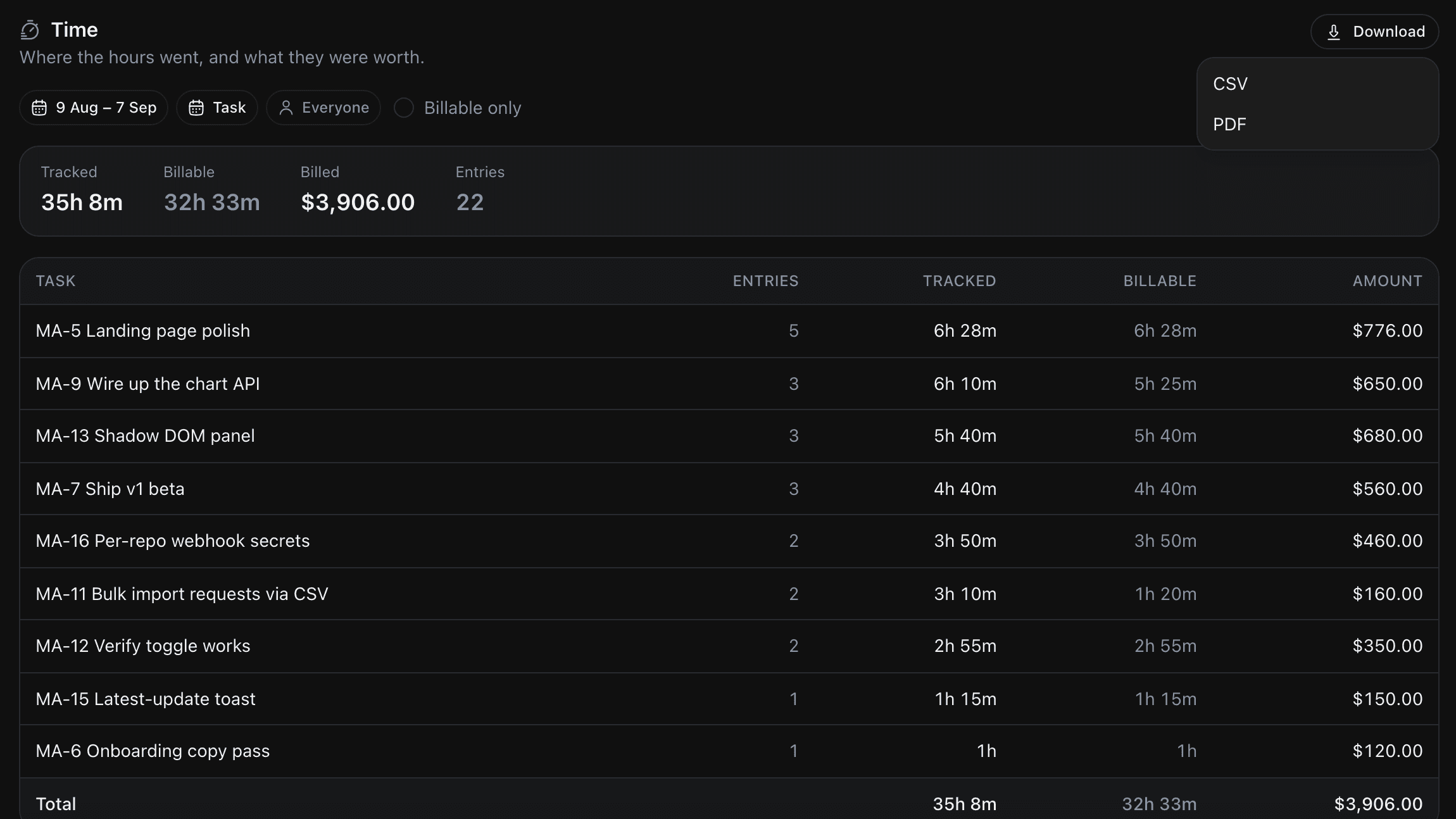
The CSV carries the group, its entry count, tracked time twice, once readable and once as raw minutes a spreadsheet can add, then billable minutes, the amount and the currency. It is UTF-8 with a byte order mark, so accented names open correctly in Excel.
The PDF is a plain A4 table with a bold Total, and it is not an invoice: no client, no tax line, no logo. It is Latin-1 only and does not wrap long labels, so Cyrillic, Greek and CJK names arrive as question marks. The CSV is the lossless one.
Who can see whose hours
Settle this before anyone logs a week. On the built-in roles an Owner or an Admin reads everyone's time and can download the file. A Member opens the same screen scoped to their own entries, with no person picker and no download button, under a line reading: "You're seeing your own time. Ask an admin for the team's."
Changing or deleting time logged under another person's name notifies its owner and everyone allowed to read anyone's time. Correcting your own notifies nobody.
That narrowing belongs to the built-in roles. A custom role without the report permission still reaches the page and gets an error rather than a smaller report.
What this does not do
Half of what people expect from a time tracker is not here.
- No invoicing. Billed is the sum of the frozen amounts, and nothing raises a bill.
- No approvals and no locked periods. No submit step, no sign-off, no way to freeze a past week.
- No idle detection, screenshots or activity monitoring. The one automatic behaviour is the nudge about a running timer.
- No estimates. Nothing compares planned hours against real ones.
- No currency conversion. A window mixing currencies is flagged, not converted.
- No accounting or payroll integration. Nothing feeds a ledger.
An entry also belongs to the day it started, so a span crossing the edge of your window counts in full on one side, or not at all.
How time tracking works in Feedock
Feedock books the hours against the Tasks that already carry the work, so there is no second taxonomy to keep in step. A Task sits under a Milestone and a Roadmap item, and that item carries the Feedback that asked for it, so what the work cost lands on the execution leg of the loop.
Start the timer Monday from the Time card on the Task you are working on. Wednesday, type in the two hours of support nobody timed. Friday, open the report, set the window to the week and group by Task. At month end, set the range, download the CSV and send it where the billing happens.
The difference is not the timer. It is that the rows are the Tasks the work already lives on, so nothing gets matched up by hand. Next time you prioritize the roadmap, the effort guess on a Roadmap item is one you can check against what the last one cost.
An hour that is not attached to a piece of work is not evidence. It is a number to argue about.
Frequently asked questions
What happens if I leave a timer running overnight?
It gets clamped rather than believed. One entry is capped at 24 hours, so a timer left over a weekend saves as a single day, easy to spot and delete. An hourly sweep also nudges you once per timer, once it passes the reminder threshold set for the Project, which starts at eight hours and can be cleared to switch the reminder off.
Can my teammates see my hours?
Under the built-in roles an Owner or an Admin can, and a fellow Member cannot. A Member's report is scoped to their own entries, and the screen says so. In the app nobody watches your timer, since there is no presence view, and time never reaches the public portal or the Widget. A running timer becomes visible only where a team has turned the time events on for a Slack, Discord or Telegram channel, and there the forgotten-timer nudge names whoever left one going.
Do I still need a separate time tracking app?
If you need invoicing, approvals or payroll, yes, because this produces hours rather than bills. If the tracker was only answering what a piece of work cost and where the month went, a timer on the Task and one report cover it.
Hours are worth collecting when they attach to the work you already track. If you would rather the hours landed on the Task than on a second list, start free and put a timer on the Task you have open now.