Visual Planning Boards for Small Product Teams

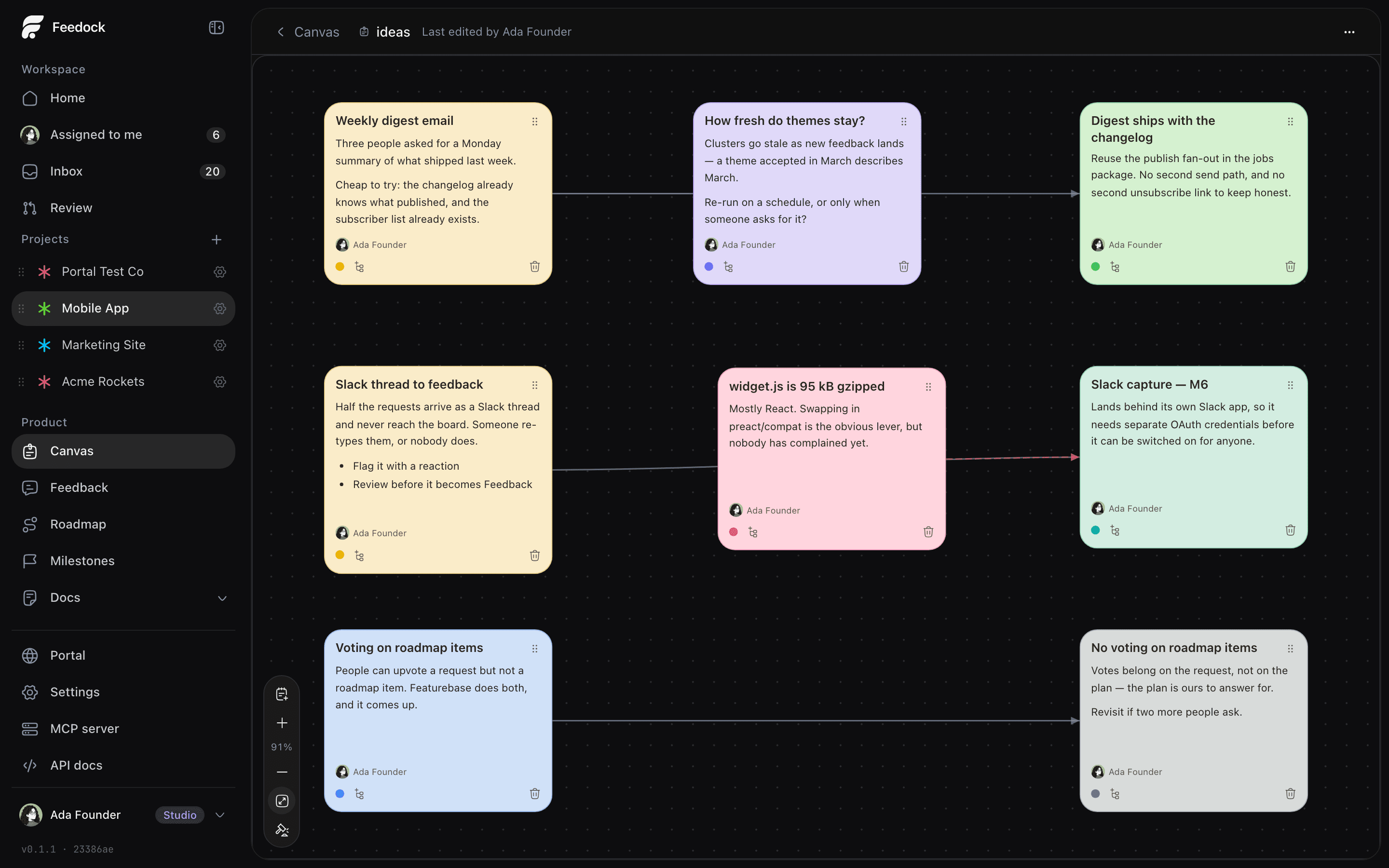
A visual planning board is a surface where ideas are written on notes, arranged into groups, connected to each other, and then judged. Most teams already have one: a whiteboard file from a session three months ago, sitting in a tab nobody opens. The backlog lives in another app, and the reason you ruled something out lives in neither, so the loop from feedback to shipped leaks before it starts.
What a visual planning board is
Three kinds of thing belong on a planning board: loose ideas, the open questions nobody has answered yet, and the decisions you already made. It is the stage before an idea is worth a Task.
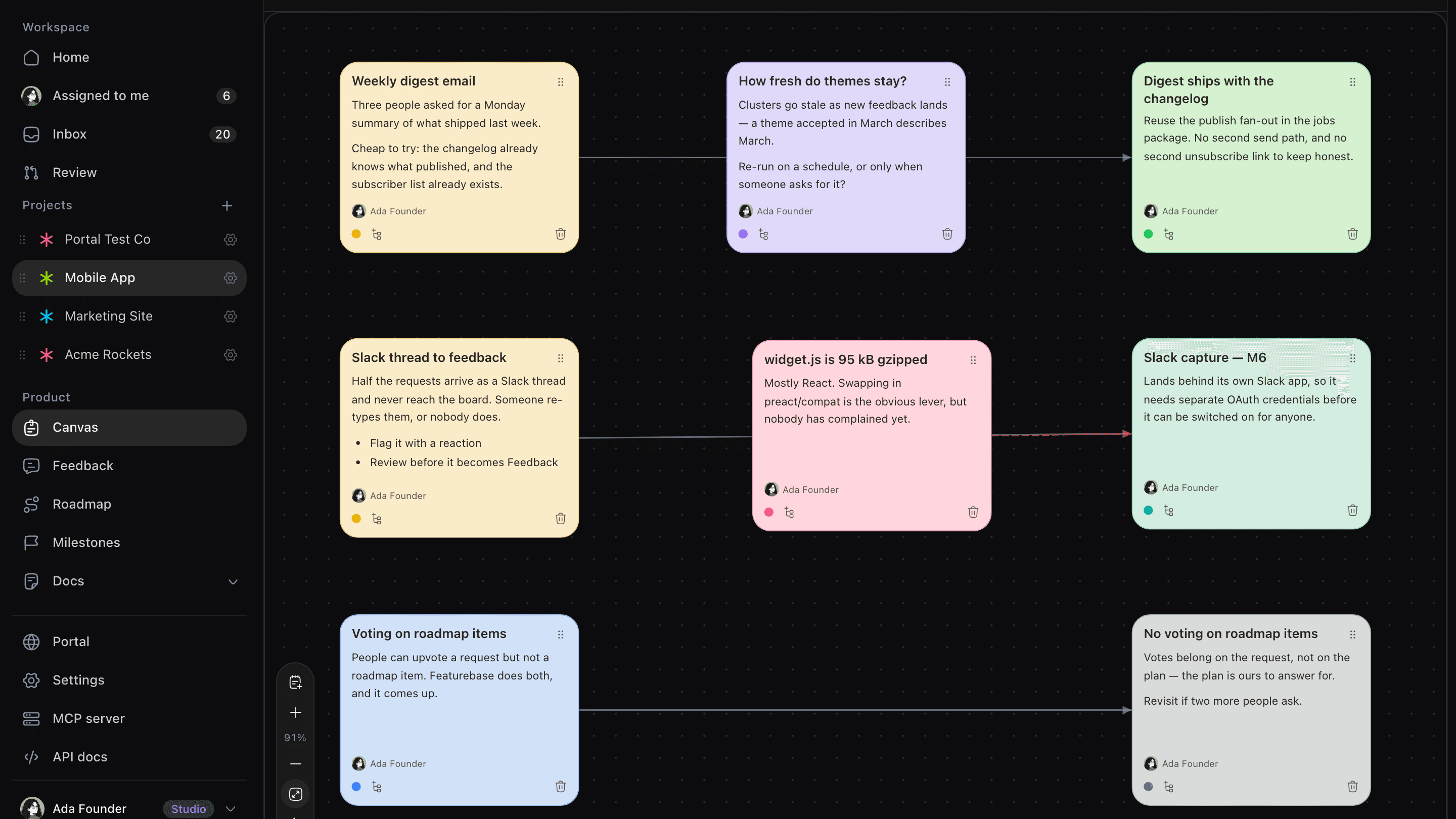
What does not belong is anything with an owner and a date. The moment assignments and due dates land on the board, it becomes a second backlog to keep in sync.
Why ideas die on the whiteboard
The session goes well. Two weeks later nothing has moved, and by the next quarter you are having the same argument again. The failure is in the storage. Four things go wrong, and none of them are about the drawing.
- The file nobody opens. A board in a separate app is a second place to look, so it becomes a second place to forget.
- The decision nobody wrote down. You ruled out per-seat pricing for a good reason. The reason was said out loud, never typed.
- The idea that gets re-argued. With no record of the ruling, the same proposal comes back and costs the same hour.
- The note nobody can attribute. Six weeks later there is a note that says integrations, and nobody knows who wrote it.
A better whiteboard fixes none of them, because all four are about where the note lives after the session ends.
Run a planning session in five steps
Write, group, connect, record what you rejected, then turn what is left into work. Run the passes in that order, with a clock on each, and the board still reads next month. The usual failure is spending the whole hour on the first pass.
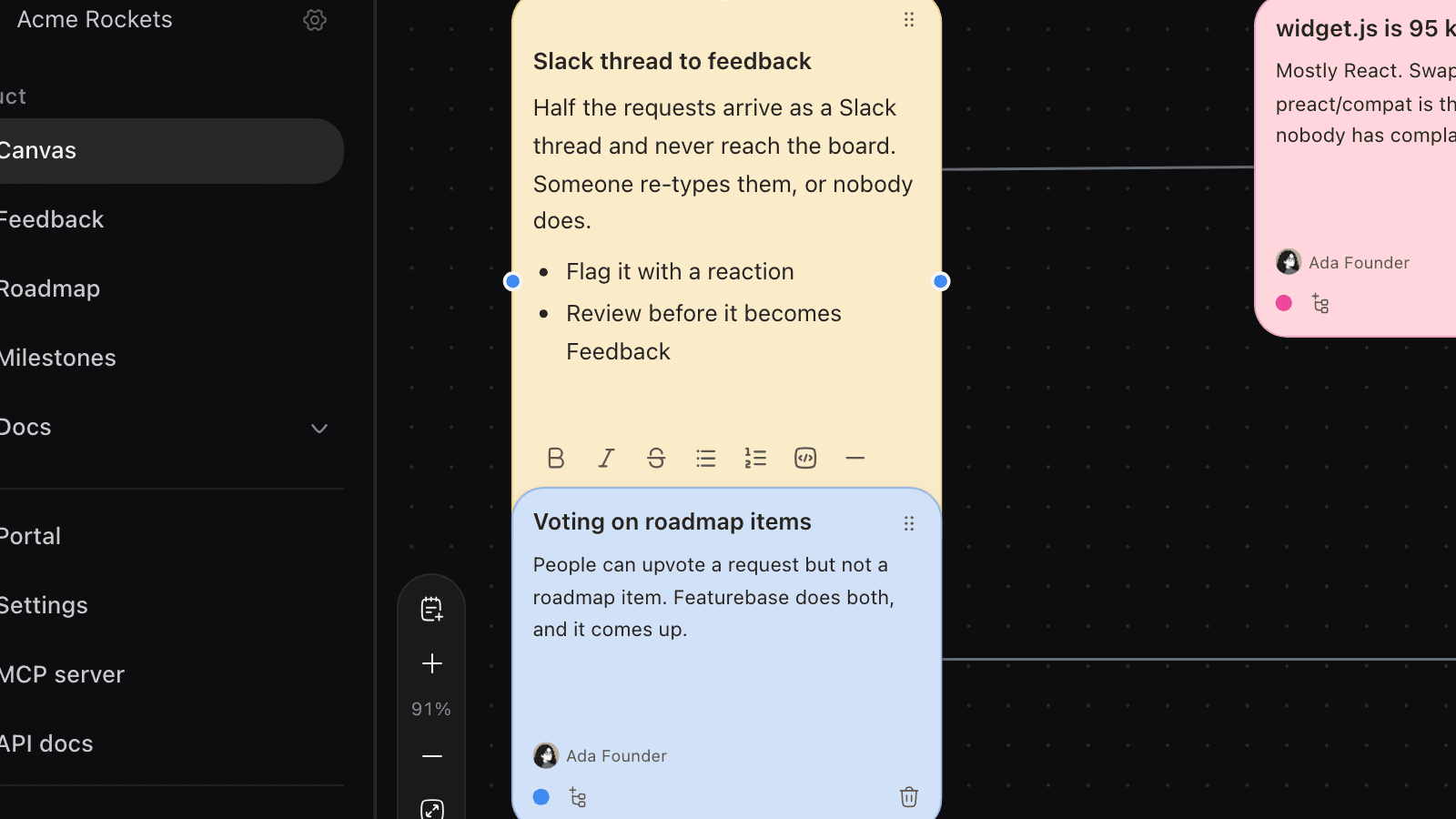
1. Write every idea down as a note
Write first and judge later. Give the session ten minutes where every idea gets a note and nobody argues yet, so the quiet people get theirs down before the loud ones start editing. One idea per note, written as a sentence somebody who missed the session could read: a note titled "pricing" ages badly, and "move the free tier from three projects to one" still means something in March.
2. Group loose ideas, open questions, and decisions
Sort by kind. Grouping by theme feels natural and works worse, because it buries the questions inside the ideas. Priority comes later, with numbers you do not have.
3. Draw the order of work with connectors
Join only the notes that actually depend on each other. An arrow says something specific: this one has to land first, or this one is why the next is worth doing. Most notes need none.
4. Write down what you decided against
Before the session ends, write a note for every idea you are not doing, and the reason, one sentence each. This is the note nobody writes, because saying no feels like it needs no record. Then somebody reopens it next quarter. The reason also has a shelf life you can check: "not now, we have no billing" stops being true the day billing ships.
5. Turn the survivors into Tasks
The last pass is a person deciding. Read each surviving note, then either write the Task or leave the note where it is. Nothing on the board does this for you. Expect fewer Tasks than notes, because most of a good board is thinking that was worth having and not worth building.
What connectors are actually good for
An arrow is only useful when it says which kind of relationship it is. An untyped line says you thought about these two notes together, and nothing about what you concluded.
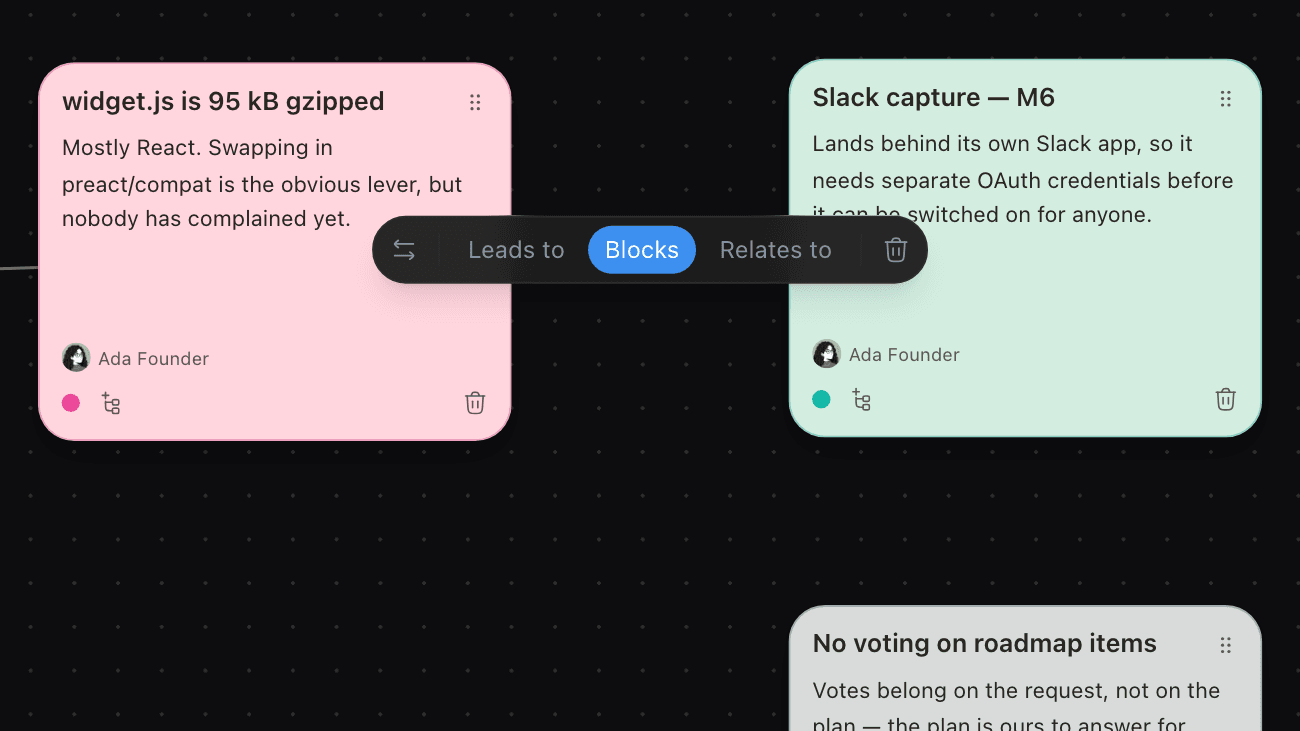
- Leads to. Sequence. Finishing this one makes the next one possible, or makes it obvious.
- Blocks. The thing that has to land first. The line is dashed and red, so the warning reads at a glance.
- Relates to. The pair you keep forgetting are connected. No arrowhead, because no order is claimed.
If you cannot say out loud which kind an arrow is, do not draw it. Three arrows get read. Thirty get looked at.
Which notes deserve to become a Task, Feedback, or a Roadmap item
The test is how much you already know. Most notes should become nothing at all.
- A Task if you could describe what somebody does with it on Monday morning.
- A Roadmap item if you have decided to do it but not yet decided what it is, and people are waiting to hear.
- A Feedback item if users asked and you have not decided. It collects votes until you know whether the demand is real.
A note that came out of a customer call is a request, not a plan, and turning a request into real work has its own steps. Ranking whatever survives comes after, in how to prioritize a roadmap.
One board per question, not one board forever
A board about pricing and a board about onboarding have different participants and different lifespans, and merging them produces one board where nobody can find anything.
Name a board after the question it answers. Pricing v2 beats Q3 planning. Boards sort by what was touched last, so the live one is first.
A whiteboard file versus a board next to the work
A whiteboard file and a board inside your Project look similar in a screenshot. They diverge on what happens to a note after the session ends.
| What you need | A whiteboard file | A board inside the Project |
|---|---|---|
| Where it lives | A separate app and login | The Project that holds the Tasks |
| Who wrote what | An unsigned sticky | Every note names its author |
| What happens to a decision | It scrolls off the edge | It stays beside the ideas it ruled out |
| Who can open it | Whoever still has the link | Everyone active on the Project |
| Cost of acting on an idea | Retype it into another tool | The task list is in the same workspace |
What a canvas does not do
- Deleting a note is immediate. There is no undo, no trash, and no version history.
- No export to an image or a file, and no import from another board.
- No live cursors. A teammate's changes show up within about ten seconds, which is a poll, not presence.
- No phone layout. The board expects a desktop pointer today.
How Canvas works in Feedock
Feedock puts the idea stage inside the same Project that holds the Feedback, the Roadmap items, the Milestones, and the Tasks. A canvas is a pan-and-zoom board of notes and typed connectors, scoped to that Project, so a board is server state rather than a file sitting beside the work.
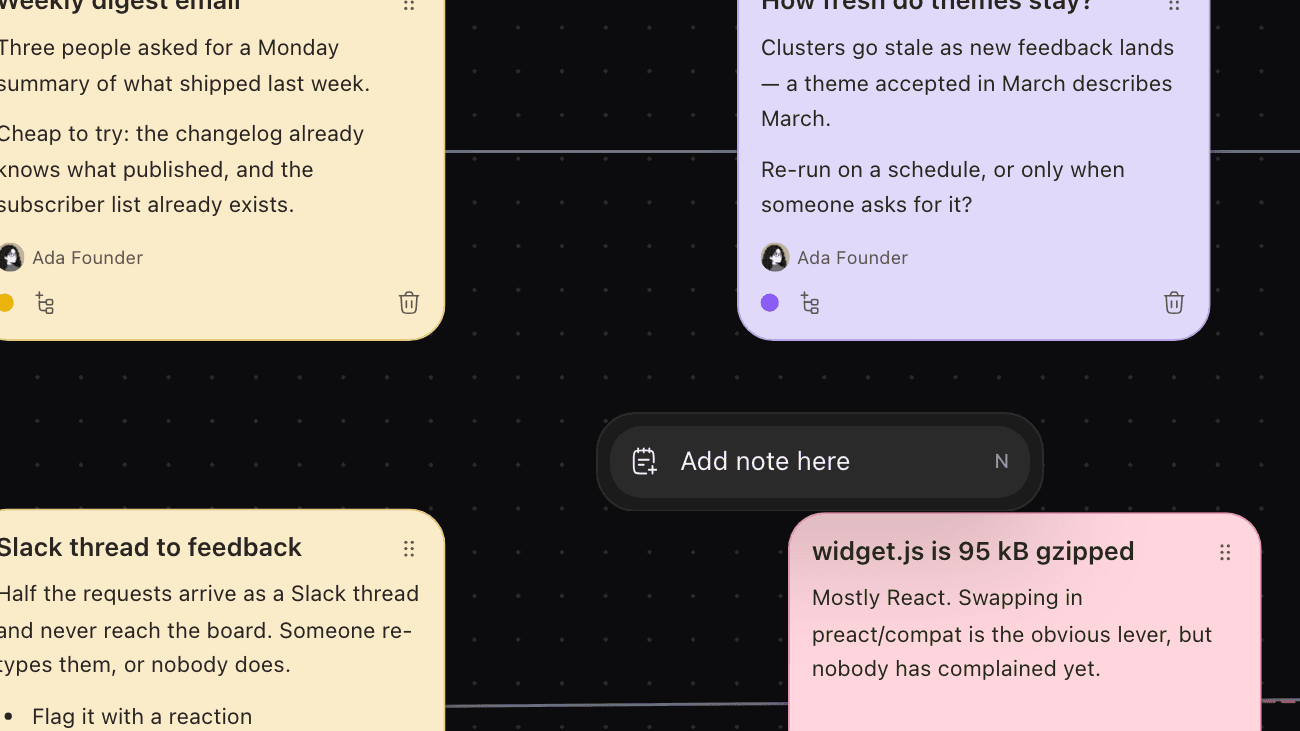
- Get the ideas down. Add a note from the bottom-left control stack, press N, or right-click where you want it. A new note steps down and right until it finds a clear slot.
- Write a real note. Clicking a note opens an inline editor with a title and a rich-text body, saved 600 milliseconds after you stop typing.
- Draw the arrows in two moves. A selected note shows four connection anchors, and dragging one onto another note makes the connector. Click that connector afterwards to set it to Leads to, Blocks, or Relates to.
- See who wrote what. Every note carries who added it, and who last edited it when that is somebody else.
- Settle a collision honestly. If somebody else saved the same note first, the write is refused and the editor offers Keep mine or Take theirs. Your text is never discarded.
Owner, Admin, and Member all create, edit, and delete notes. A board takes 500 notes and 1,000 connectors. Free, Pro, and Studio all get 200 canvases per Project.
The ideas, the open questions, and the decisions stop living in an app the work tracker cannot open, which is where the loop from feedback to shipped leaks for small teams. Writing the Task is still your job. Not retyping it out of another app is the win.
A decision you did not write down is one you will make again.
Frequently asked questions
Is this a whiteboard like Miro or FigJam?
No. A canvas in Feedock is a notes-and-connectors board rather than a drawing surface: no freehand ink, no shapes, no frames, no images on notes, and no import or export. What it does instead is sit in the same Project as the work.
Does a note become a Task automatically?
No. A person reads the board, decides an idea is worth building, and creates the Task. There is no convert button, no link between a note and a Task, and a note carries no status from the work it inspired. What the board saves is the second app and the tab switch.
Can I make a canvas public or share it outside the team?
No. Every canvas is open to everyone active on the Project and to nobody else. There is no public link, no portal page, and no widget tab for a board, and no way to restrict one to part of the team. For outside eyes, use the public Roadmap and the Changelog.
A planning board earns its hour when a decision made in March is still readable in June. If yours lives in a file your task list cannot open, you can start free and run the next session on a board that sits in the same Project as the work.